
A chat page puts a published agent on any website as a link, a QR code and a chat button. Visitors need no account, so it suits a library's help desk.
It always runs the published version. To know who learners are, use a course instead. Librarians can start from Overview → Open learning on a website.
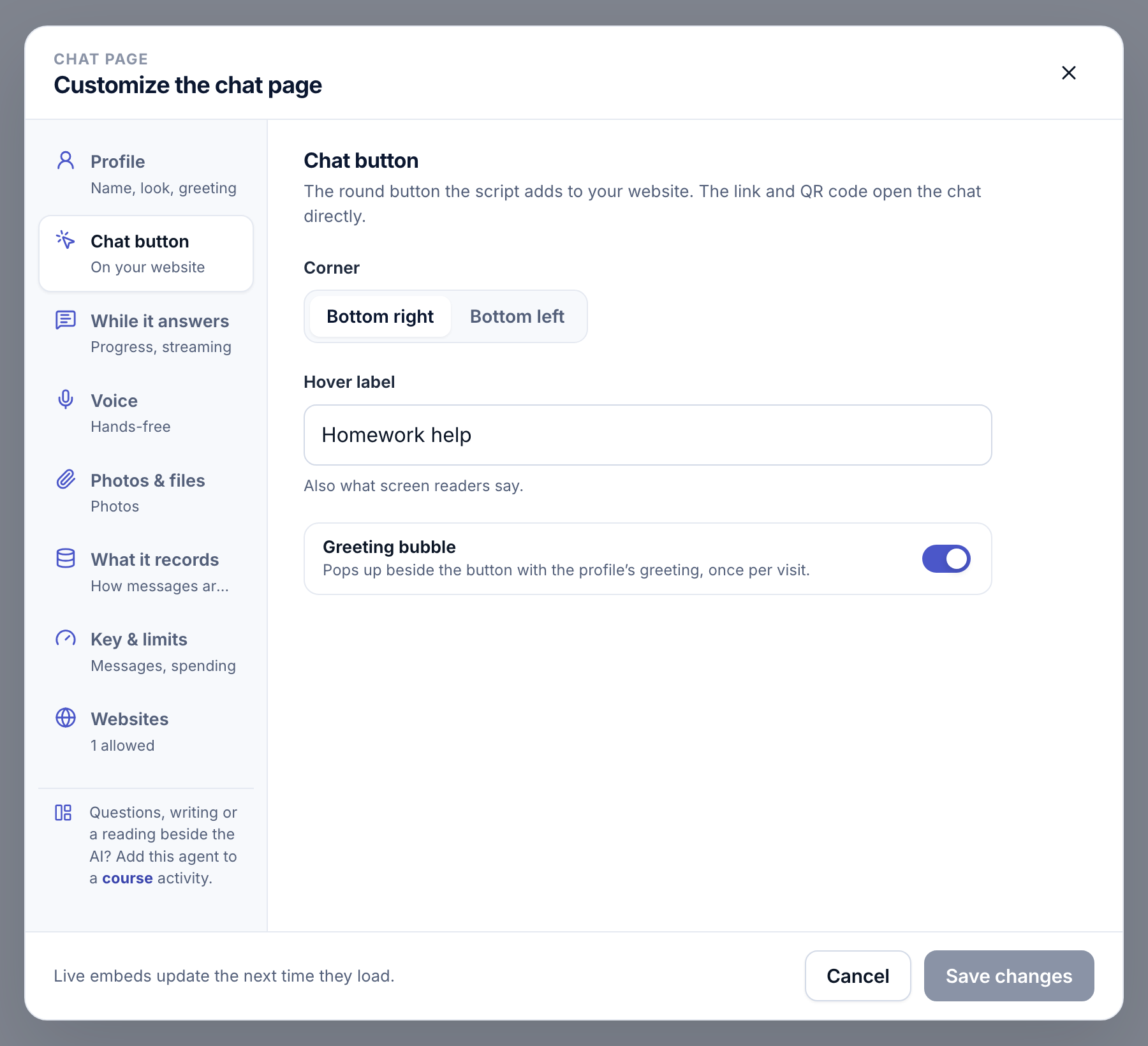
Turn it on
- Open the tab. Publish the agent, open Connect → Chat page, and click Set up chat page.
- Choose the key. Under Key & limits, pick the key it Runs on. Every message is a run on this key.
- Turn it on. Set limits and websites (below), then click Turn on chat page.
Share it or add it to a site
Share gives the link and QR code. Add it to a site asks Where will people chat? and gives the steps for each place. On any website, paste the script before </body>. Copy yours from the tab:
<script src="https://page.viablelearning.org/embed.js" data-agent="your-agent-slug" async></script>
In LibGuides, add a Media / Widget asset to one guide, or use Admin → Look & Feel → Custom JS/CSS for every guide. Canvas removes scripts, so it gets a frame.
Your page can open the chat with a question already asked, for example from its own search box when nothing matches:
window.__viableChat?.['your-agent-slug']?.open({ ask: 'How do I cite a web page?' })
The question is sent once the chat has loaded, as if the visitor picked it. This site's docs search does the same with its Ask the docs assistant row.
Under Chat button, Open links to your site in the same tab makes a link to the website the chat is on, such as a page it cites, open there instead of in a new tab. A single-page site can route to it itself, so the chat stays open:
window.addEventListener('viable-chat:navigate', (event) => {
  event.preventDefault()
  router.push(new URL(event.detail.url).pathname)
})
Limits and allowed sites
- All visitors, per day: 10–5,000 messages, default 300. Daily cap sets what it may spend a day.
- Each visitor, per minute: 1–30, default 8. Each visitor, per day: 0 for no limit.
- Longest message: 200–4,000 characters.
Daily counts reset at midnight UTC. A school behind one address can send 400 messages a minute, and each visitor keeps their own limit. For 30 learners, 300 a day is ten messages each. Only these websites (up to 20) limits where the button and frame appear, not the link.
Recordings and attachments
- What it records: each device is an anonymous visitor with a visitor code (V-…), listed in Teach → Learners. Keep recordings saves spoken messages privately.
- Voice: with a Transcribe step, Visitors can speak appears. With a Speech step, so does Play answers aloud.
- Photos & files: up to 4 files of 8 MiB each, when every step that reads the message can read them.
What it makes public
Warning
Anyone with the link, or on an allowed site, can chat with your agent on your key.
- The profile is public. Replies show their sources, but uploaded files show only their names unless the knowledge base allows opening them.
- The page hides your workflow, but a model can repeat its instructions. Write nothing there you wouldn't show a visitor.
- Visitors can't see each other's conversations. People sharing one computer and browser are one visitor.
Pause takes the link and embeds offline. Turn off chat page also clears the settings.
The agent profile
The profile is how the agent presents itself, on its chat page and in courses. In Connect → Profile → Edit profile, set the Greeting, up to four Suggested questions and the Notice saying what the AI is. Changes show without publishing.
- Knowledge bases: choose whether readers can open cited files.
- Keys and costs: give the page its own key and budget.