
Progress shows who has done what in a course, and what you may want to look at. Open it during class, or after, before you plan the next lesson.
The grid
Progress has a row for each learner and a column for each activity, with how many are done. Everyone on the class list has a row, joined or not.
Each cell is done, started or not opened. Search names and codes, filter by section, and press Refresh to catch up.
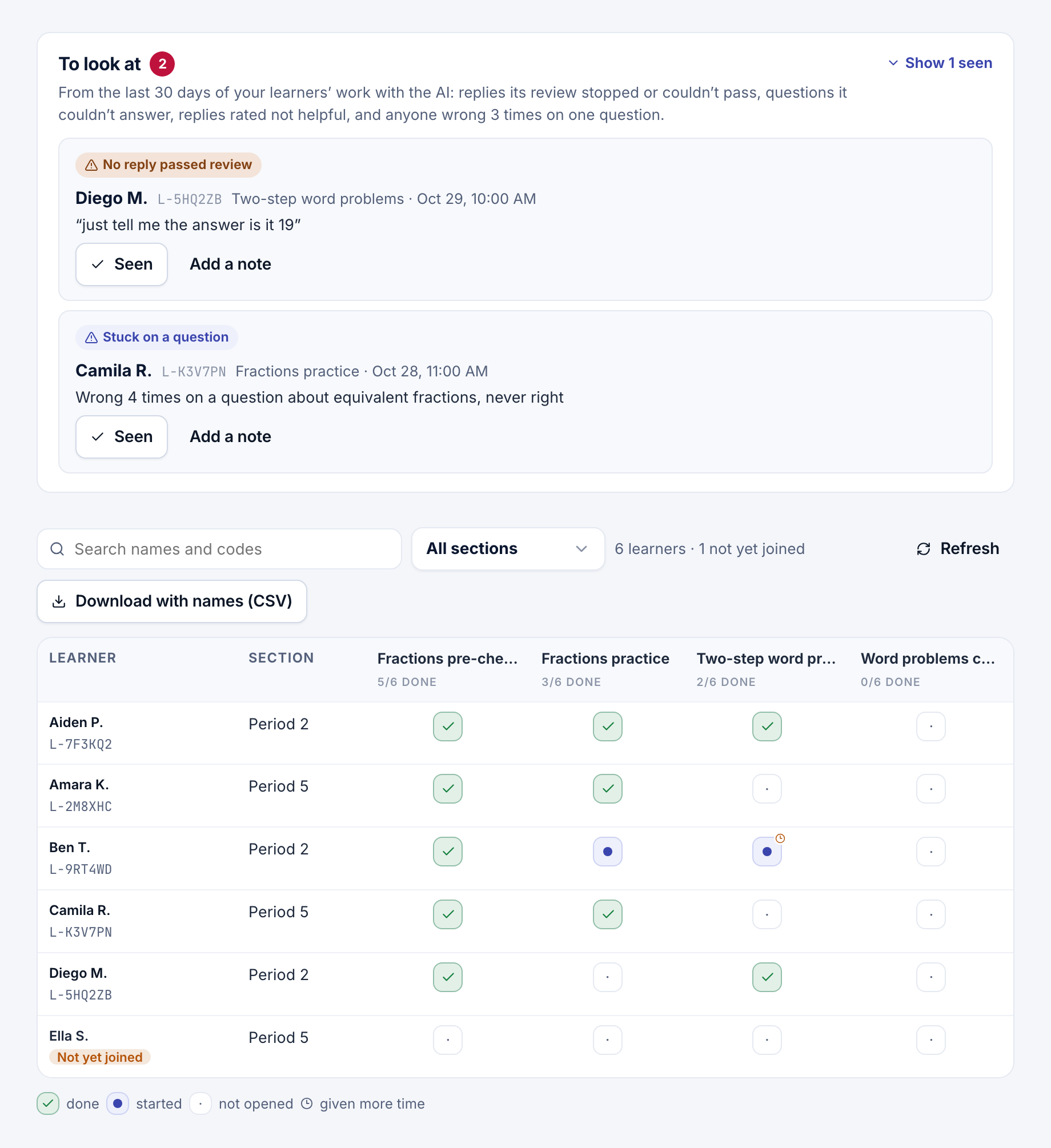
To look at
Above the grid, To look at lists moments from the last 30 days of your learners' work with the AI. Safety replies and calls for a person come first, then the newest.
- Safety reply: the agent's VETTING step stopped a reply for safety.
- Needs a person: the VETTING step asked for a person.
- No reply passed review: no reply passed VETTING in the attempts allowed, so the learner got the last one unapproved.
- The AI couldn't answer: the agent itself said it couldn't answer, or wanted a person.
- Rated not helpful: the learner rated a reply not helpful.
- The reply failed: the learner got an error instead of a reply.
- Stuck on a question: three wrong answers to one question and none right.
Each shows who, in which activity, when, and their message or the question's skill. Select it to open their work.
When you've dealt with one, press Seen. Add a note to remember what you did, such as "Talked with Sam after class". Seen ones fold away under Show seen; Not seen brings one back.
Note
Owners, editors and the course's teachers and assistants see names and mark items seen. Project viewers see learner codes only. On a study's course, an item never says which condition a learner has.
A learner's work
Open a cell to see one learner's work in that activity:
- when they started and finished, and how long they were active
- their plan, draft and hand-in
- each answer, Right or Not right, with tries; Listen plays a spoken answer when recordings are kept
- their highlights and notes
- their last 20 Messages with the agent, typed or spoken, and whether they rated each reply helpful
The cell is also where you give extra time. See Learners and sign-in.
The download with names
Download with names (CSV) lists each person's name, student ID, section and visits, and each activity done, started or not yet. Use it for your records or gradebook.
Warning
The file has learners' names and IDs. Keep it somewhere safe.
Viewers get Download (CSV) instead, by learner code only. The research export also uses learner codes, never names.
- How the AI helps: set the goal and how far the AI may go.
- Learners and sign-in: sections, code cards and extra time.
- Export: download your course's data for research, by learner code.