
Every agent is a workflow of steps on a canvas. This page says which step to reach for, and how to edit, share and version the workflow.
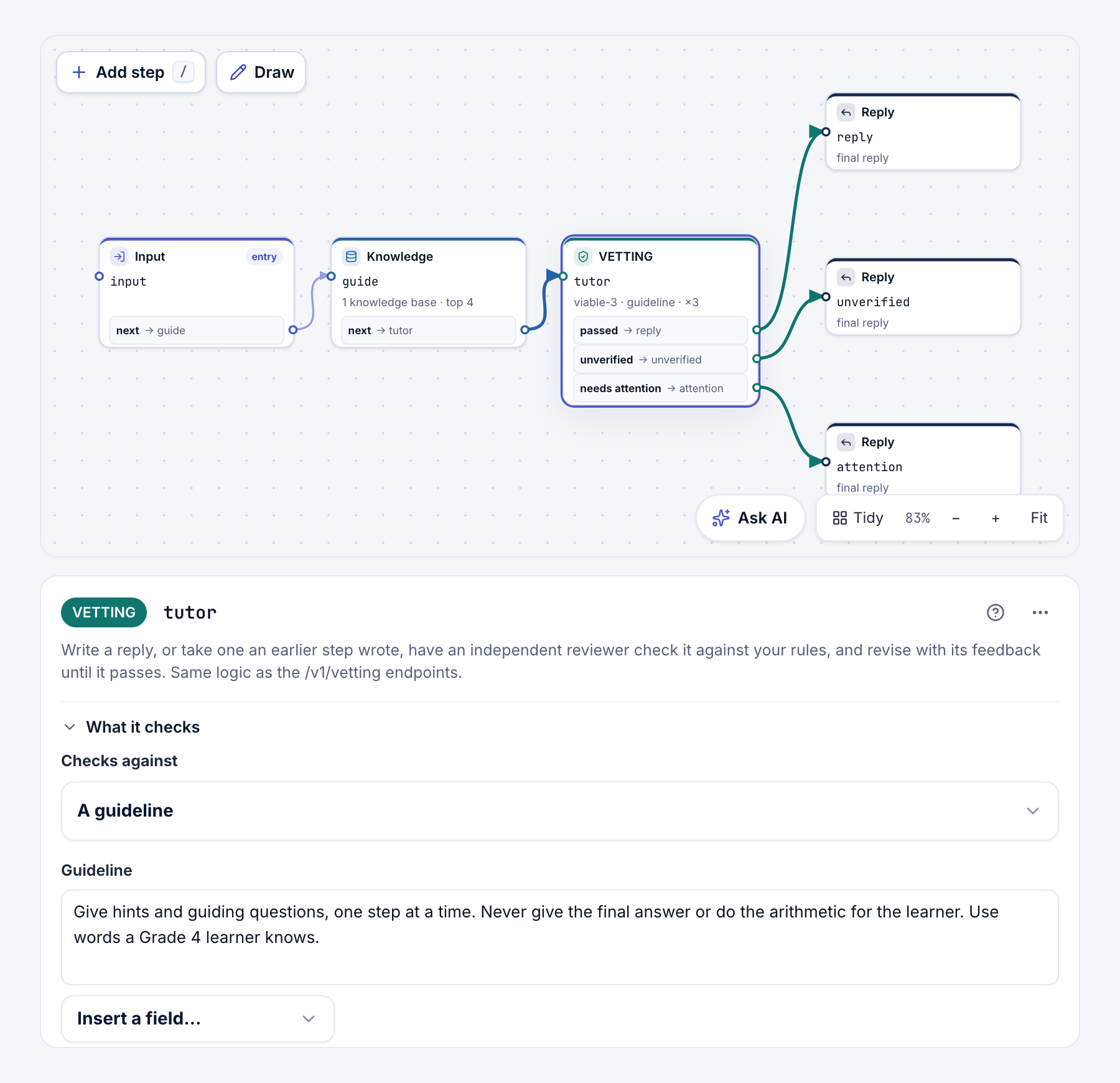
Which step to use
Add step (or /) opens the step library.
- Start & reply. Input starts a run with the message and conversation. Reply ends a path with the text the reader sees. Ask user asks a question and waits for the answer.
- AI. LLM makes one model call to write or judge. Agent lets a model use tools, such as Use knowledge, until it can answer. Image, Speech and Transcribe handle pictures and sound.
- Checks & review. VETTING has a reviewer check each reply against your rules. Guardrail checks text once and goes to
passorfail. - Routing & logic. Branch picks a path from an earlier field, with no model call. Router has a model choose a route. Loop repeats steps, and Parallel runs 2–6 paths at once.
- Knowledge & memory. Knowledge searches knowledge bases. Memory keeps facts about a person. State keeps variables.
- Web & data. Fetch URL reads one public web address. Transform reshapes earlier outputs.
An Agent step is slower and costlier than fixed steps, and its path varies. A rule that must always hold, such as "never give the answer", needs a check.
Edit on the canvas
- Drag from an output dot (
next,pass…) onto the next step. - Every run starts at the step marked Entry. A step's menu has Make this the entry step.
- Click a step to open Build → Step settings. In text, Insert a field… adds an earlier step's output, such as
{{tutor.content}}. - The chip beside Tools says Ready, or how many issues to fix.
Warning
Never put a password, API key or token in a step. Every project member can read it, and Export JSON copies it into the agent file.
Code view and the assistant
Build → Code shows the workflow as JSON. Edit it or paste JSON from an AI tool, then click Apply JSON; until then you can't publish. AI prompt + JSON writes a prompt for your own AI tool.
Build → Assistant answers questions about the agent and proposes changes, each waiting for Apply to draft or Discard.
Work together
An agent has one shared draft that saves as you go. Edits from teammates, the API and the VIABLE CLI land in it too. Share & invite invites people to the whole project as Editor or Viewer. Undo undoes only your own edits.
Versions
- History → Save a version marks a point to return to. View & restore versions lets you Preview one or Restore it into the draft.
- Publish makes the draft a new numbered version, the one learners, chat pages and apps use.
- Tools → Discard changes puts the draft back to the live version. Tools → Unpublish agent stops new runs and keeps the draft.
- VETTING: check every reply against rules you state.
- Knowledge bases: give an agent documents to search and cite.
- Testing and run history: try the draft and read each step of a run.