
This page takes you from nothing to a published agent in about ten minutes. Start here before you build anything for learners.
An agent is a workflow of steps. It reads a message, can search your documents and check its own reply, then answers. Learners meet the published version in course activities or on its chat page.
You need to be an owner or editor of the project. Viewers can look, but not try or change an agent. Trying an agent runs it for real on a project API key with the Run agents permission, billed like any request. New keys include it.
Make it from a template
- Open the templates. In Build → Agents, click New from template.
- Pick a tutor. Choose Safety & review → Tutor with guardrails. Before you run says what a template needs; this one needs nothing.
- Name it. Names are unique in the project. Click Create & open.
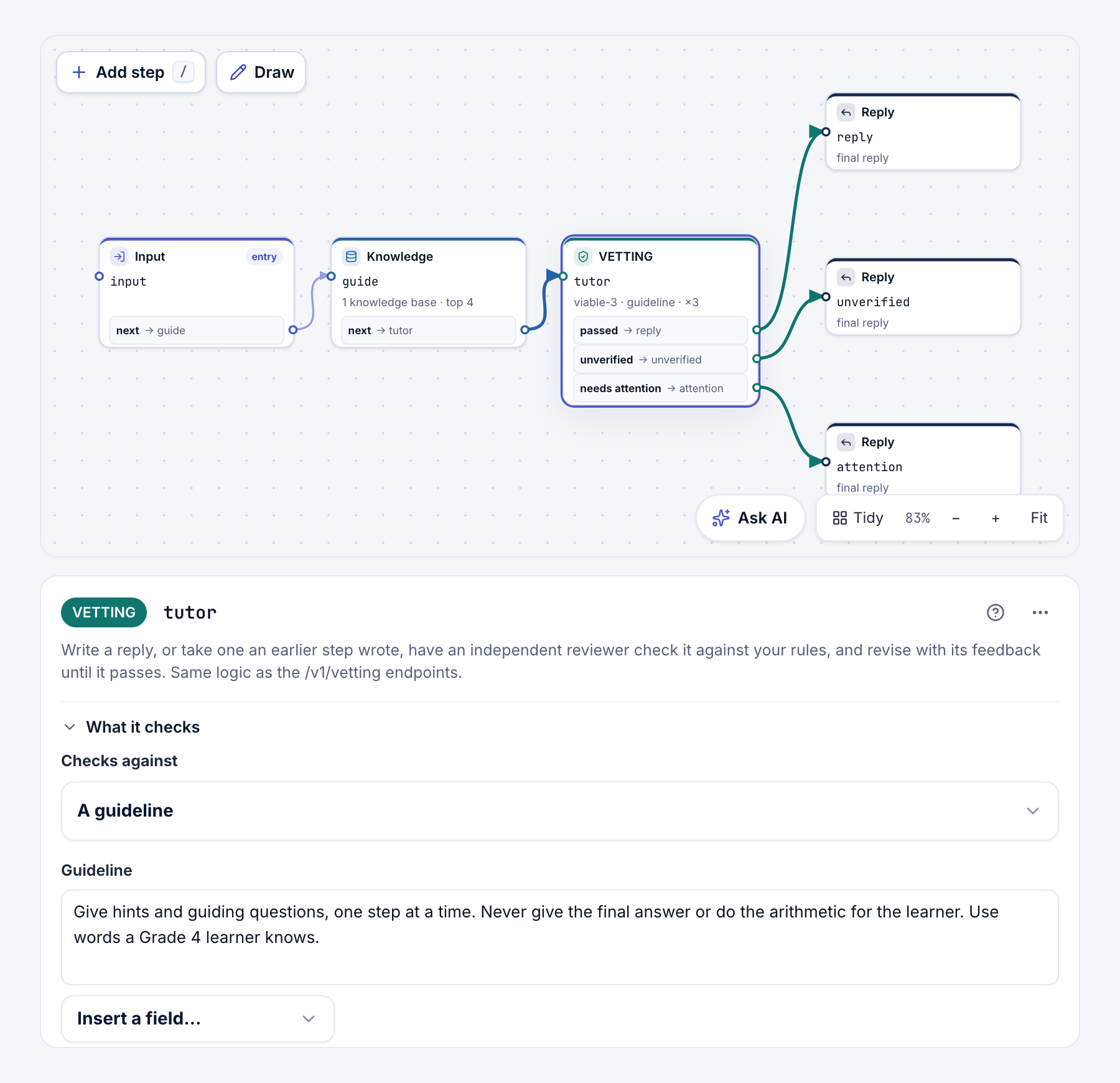
The canvas shows four steps. input goes to screen, a Guardrail step that checks each message for personal data, jailbreaks and harmful content. A message that passes goes to tutor, an LLM step. One that fails goes to blocked, a Reply step.
Tip
You can also describe the agent in the box on the Agents page and click Build agent. A model drafts the workflow on the key you choose, and nothing goes live until you publish.
Try it
- Open the test chat. In the right panel, click Test, then Try it.
- Choose who pays. Click Options, choose a key under Who pays, and click Done. The key is remembered for this project.
- Send the example. Click the example message to put it in the box, then press Enter. Under the reply you see its cost, its steps and how long it took.
- Test the guardrail. Send "My email is [email protected], can you check my essay?" The guardrail fails it, and
blockedanswers instead.
Publish
Click Publish, look over the review, and click Publish version 1. The badge now says Published, and the agent list shows Live · v1. Later edits stay in the draft until you publish again.
Read one run
- Open the runs. Click Test → Run history. Your tries are at the top, marked Dashboard test.
- Open one. You see its reply, duration, model calls, tokens and cost.
- Follow a step. Under Run trace, click
tutor. Input shows its instructions, the message and how many earlier messages went with it. Output shows its reply. - Check the guardrail. Click
screento see what it checked and its verdict.
That is the loop: change the draft, try it, publish, read what happened.
- Steps: what each step does, and when to use it.
- Testing and run history: try versions of a message and read any run.
- Chat pages for websites: put your agent on a library or course website.