
This page takes you from nothing to a working class in about ten minutes. Use it the first time you teach with VIABLE.
Before you start
You need a project where you are an owner or editor, and a published agent in it: the AI your learners talk with. If you have none yet, start with Your first agent.
Make the course
- Start a course. Open Teach → Courses and press New course.
- Name it. Type a Name, such as "Biology 101 · Period 2 and 3".
- Choose what kind. Under What kind of course, pick A class over weeks, A one-off session or A course for research.
- Say who it is for. Choose Adults, Teenagers (13 to 17) or Children (under 13).
- Create it. Press Create course. It starts as a Draft, so its link doesn't open for learners yet.
Who it is for decides how learners get in. Children always get personal codes on printed cards. In a class over weeks, adults and teenagers type their name. You can change all of this later in the course's Settings.
Add an activity with the AI
- Pick a kind. On the Activities tab, choose Writing task.
- Check the AI. Learners talk with is already set to your most recently changed published agent. Pick another if you like.
- Write the task. Under Content, type The task, for example "Should school start later? Take a side and give two reasons."
- Add it. Leave Opens on Open and press Add activity.
A preview appears beside the form: "As a learner sees it · nothing here counts". It shows the Writing panel with your agent beside it, on Desktop or Phone.
Choose how it looks
In the course's Settings → Appearance, pick a look for its home and activities, and for the study's consent step if it has one. Clear is the default; Playground suits young learners. Under Color, keep the look's own or choose another; text on it turns dark or light so it stays readable. Press Preview to see it at full size, on a computer or a phone, in light and dark.
Clear Plain and calm: open lists, the next activity marked by a bar.
Notebook Ruled paper with a margin line; the next activity on a sticky note.
Field guide Graph paper and slab headings; each activity a tag.
Reading room A book page in one serif; the activities as its contents.
Playground Big tiles, thick outlines, rounded type: for young learners.
Route A transit line: each activity a stop, the next on the board.
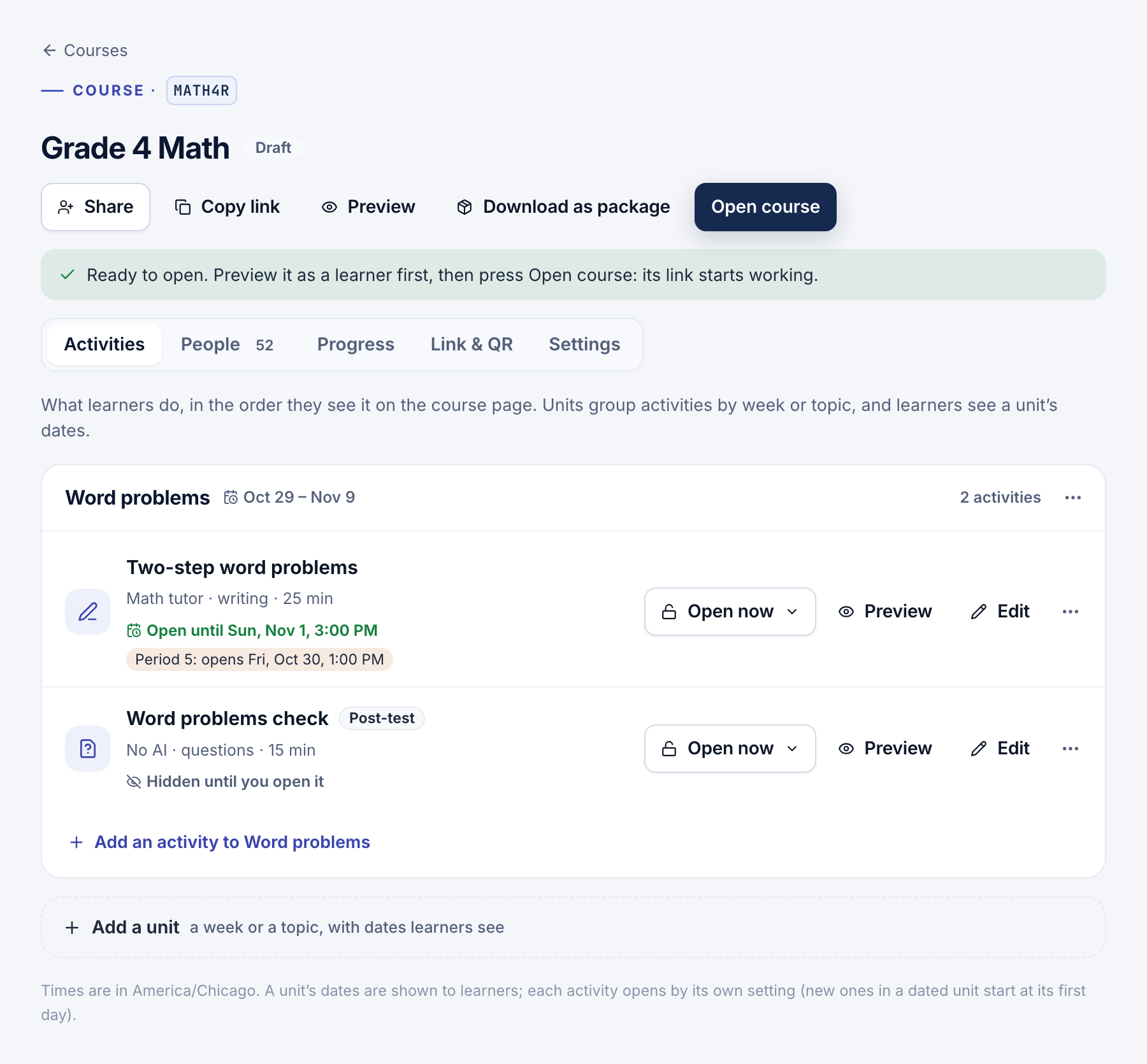
- Clear what's missing. Before it opens lists anything left. If it asks you to Choose the AI key that pays for its AI, pick one in Settings → The AI and press Save settings.
- Try it. Press Preview to go through the course as a new learner. Previews stay out of Progress.
- Open it. Press Open course.
- Share it. On the Link & QR tab, copy The course's link, or press Show to the class for a full-screen QR code that phones can scan.
Tip
In an LMS, add the course as a link that opens in a new tab. Inside a frame, some browsers forget who a learner is between visits.
See your first learner
A learner opens the link, types their name and starts. On the Progress tab, they appear with a dot under the activity once they start, and a check once they're done.
That's a working class.
- Activities and panels: lessons, tests, surveys, and the panels learners work in.
- How the AI helps: tell the AI the goal and how far it may go.
- Learners and sign-in: sections, your class list, code cards and shared computers.